CF-Miner Task
The CF-Miner (Category Fishery Miner) looks for interesting histograms — it finds conditions under which the distribution of a target categorical attribute shifts in a notable way. For example, you can find circumstances under which accident severity is rising or falling compared to the overall dataset distribution.
Task creation is handled through a three-step wizard: Task Setup → Logic Configuration → Quantifiers.
Step 1 — Task Setup
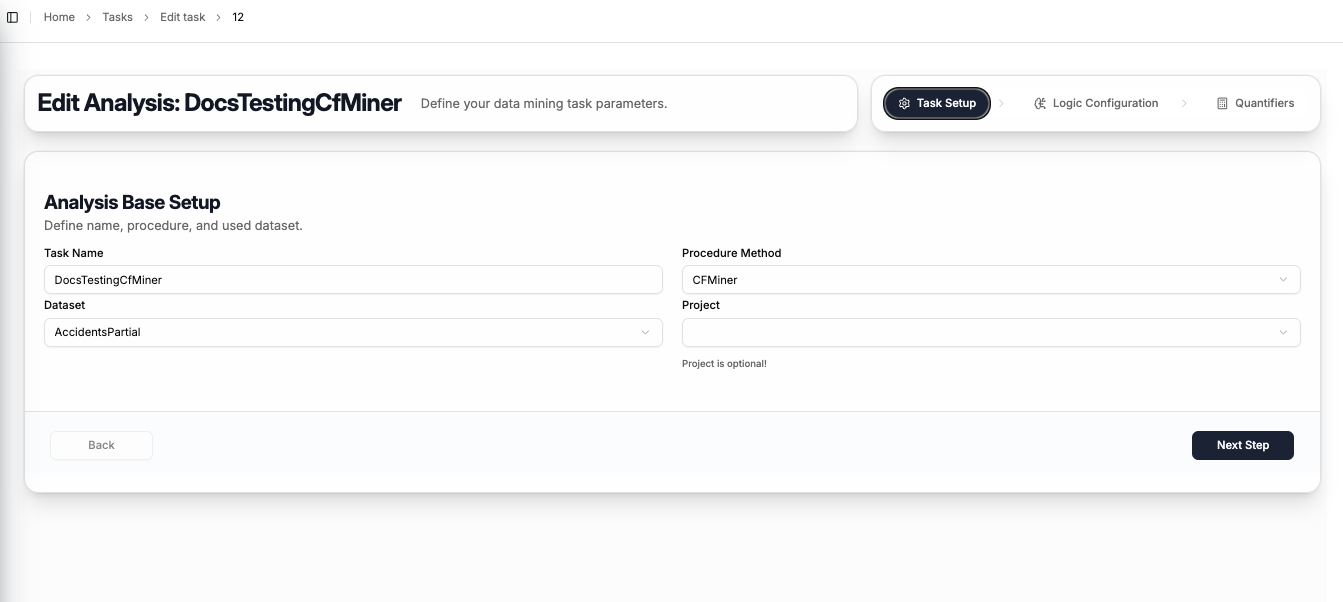
The first step captures the basic task information:
| Field | Description |
|---|---|
| Task Name | A name to identify this task |
| Procedure Method | Select CFMiner |
| Dataset | The dataset to mine — select from your uploaded datasets |
| Project | Optionally assign the task to a project (can be left empty) |
Click Next Step to proceed to logic configuration.
Step 2 — Logic Configuration
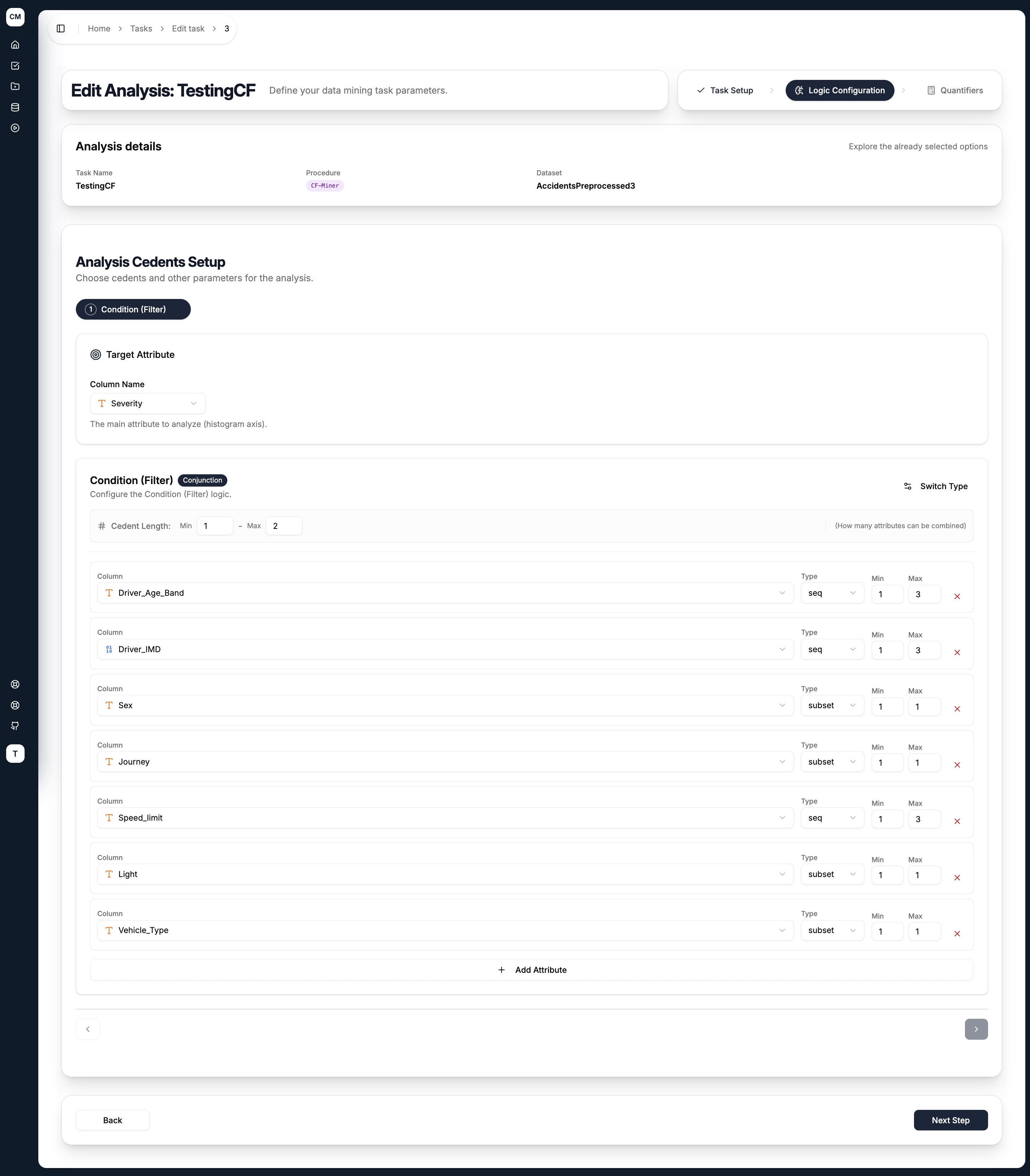
The CF-Miner has a simpler cedent structure than the other procedures. The logic configuration step has a single tab — Condition (Filter) — plus a dedicated Target Attribute selector at the top.
Target Attribute
Select the categorical column whose histogram you want to analyse. This is the attribute whose distribution will be examined across different conditions. For example, selecting Severity will tell the miner to look for conditions under which the distribution of Fatal, Serious, and Slight accidents shifts.
Condition (Filter)
The condition defines the search space — the combinations of attribute values the miner will explore to find interesting histograms. Configure it the same way as any other cedent:
- Cedent Type — toggle between
Conjunction(AND) orDisjunction(OR) using the Switch Type button - Cedent Length (Min / Max) — controls how many attributes can be combined in a single condition
For each attribute added:
| Field | Description |
|---|---|
| Column | Select an attribute from the dataset |
| Type | How the attribute's values are grouped — see Literal Types below |
| Min / Max | The minimum and maximum number of values to combine for this attribute |
Use + Add Attribute to add more columns, and the ✕ button to remove one.
Literal Types
| Type | Description |
|---|---|
subset | Any subset of the attribute's categories (unordered) |
seq | Sequences of consecutive ordered values |
lcut | Left cut — takes values from the left end of the ordered range |
rcut | Right cut — takes values from the right end of the ordered range |
Click Next Step to proceed to quantifier setup.
Step 3 — Quantifiers
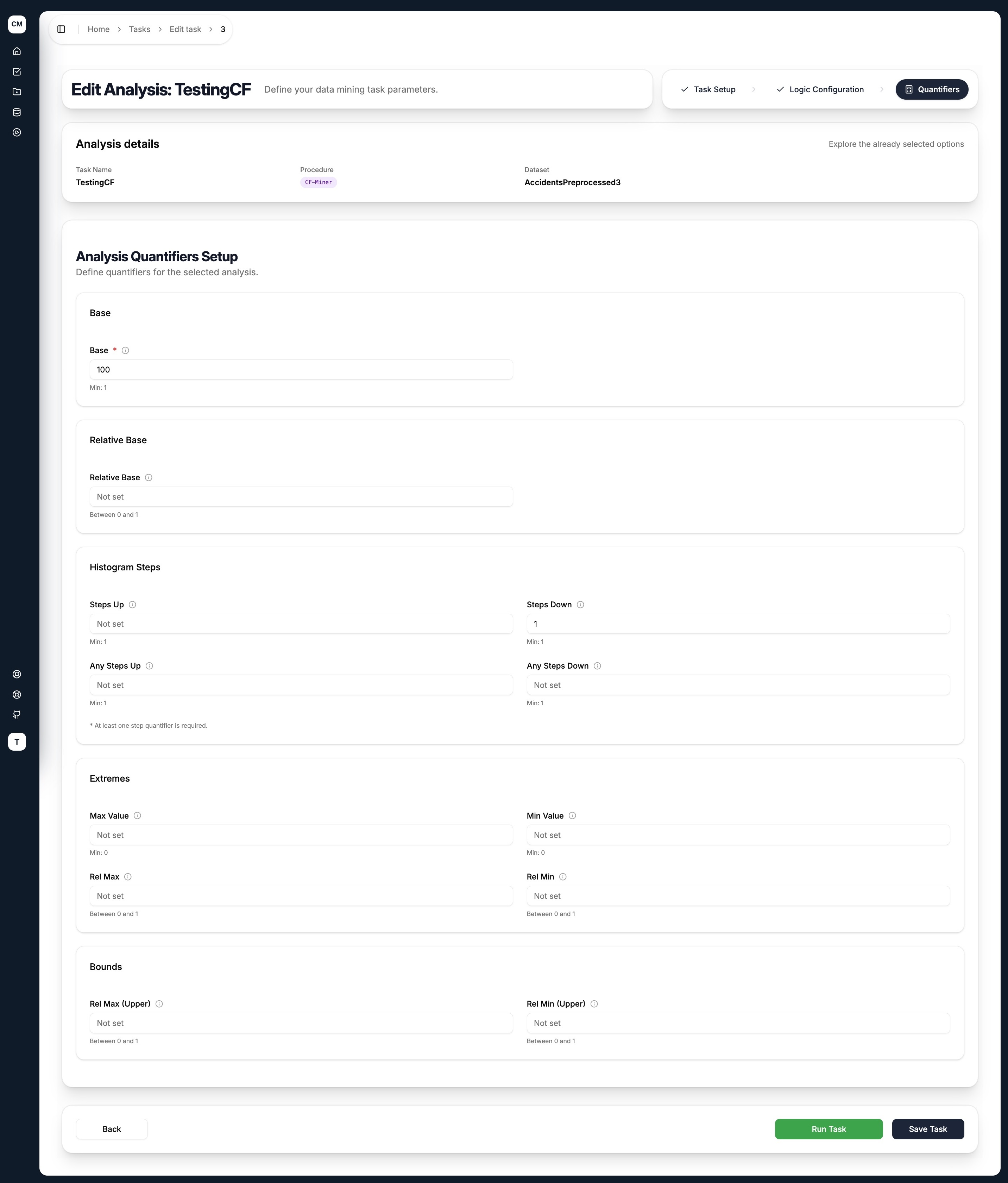
CF-Miner quantifiers are based on the shape and size of the discovered histograms rather than confidence or probability. Only rules meeting all specified conditions are returned.
Base
| Quantifier | Description |
|---|---|
| Base | Minimum number of records satisfying the condition |
| Relative Base | Minimum base as a fraction of the total dataset size |
Histogram Steps
These quantifiers describe how the histogram values change across the target attribute's ordered categories:
| Quantifier | Description |
|---|---|
| Steps Up | Minimum number of consecutive increases between adjacent category counts |
| Steps Down | Minimum number of consecutive decreases between adjacent category counts |
| Any Steps Up | Minimum total number of increases anywhere in the histogram |
| Any Steps Down | Minimum total number of decreases anywhere in the histogram |
Extremes
These quantifiers constrain the absolute or relative size of the histogram's highest and lowest category counts:
| Quantifier | Description |
|---|---|
| Max Value | Minimum absolute value of the largest category count |
| Min Value | Minimum absolute value of the smallest category count |
| Rel Max | Minimum relative share of the largest category (out of total) |
| Rel Min | Minimum relative share of the smallest category (out of total) |
| Rel Max Upper | Maximum relative share of the largest category — sets an upper bound |
| Rel Min Upper | Maximum relative share of the smallest category — sets an upper bound |
Upper bound variants (Rel Max Upper, Rel Min Upper) use a less than or equal condition instead of the usual greater than or equal. They are useful when you want to find histograms where values are relatively balanced — for example, constraining both the max and min to be close to average.
Leave any field empty (Not set) to skip that threshold.
Submitting the Task
At the bottom of the quantifiers step, two actions are available:
- Save Task — saves the task configuration for later execution
- Run Task — saves the task and immediately dispatches it to the execution pipeline
A common starting configuration is to set Base (to ensure conditions are backed by enough records) and Steps Down or Steps Up (to filter for conditions where the histogram actually changes shape in the direction you're interested in).