Columns Analysis and Preprocessing
The Columns Analysis and Preprocessing tab is where you prepare your dataset for mining. It gives you a full overview of all columns and lets you apply transformations to each one individually through a dedicated drawer panel.
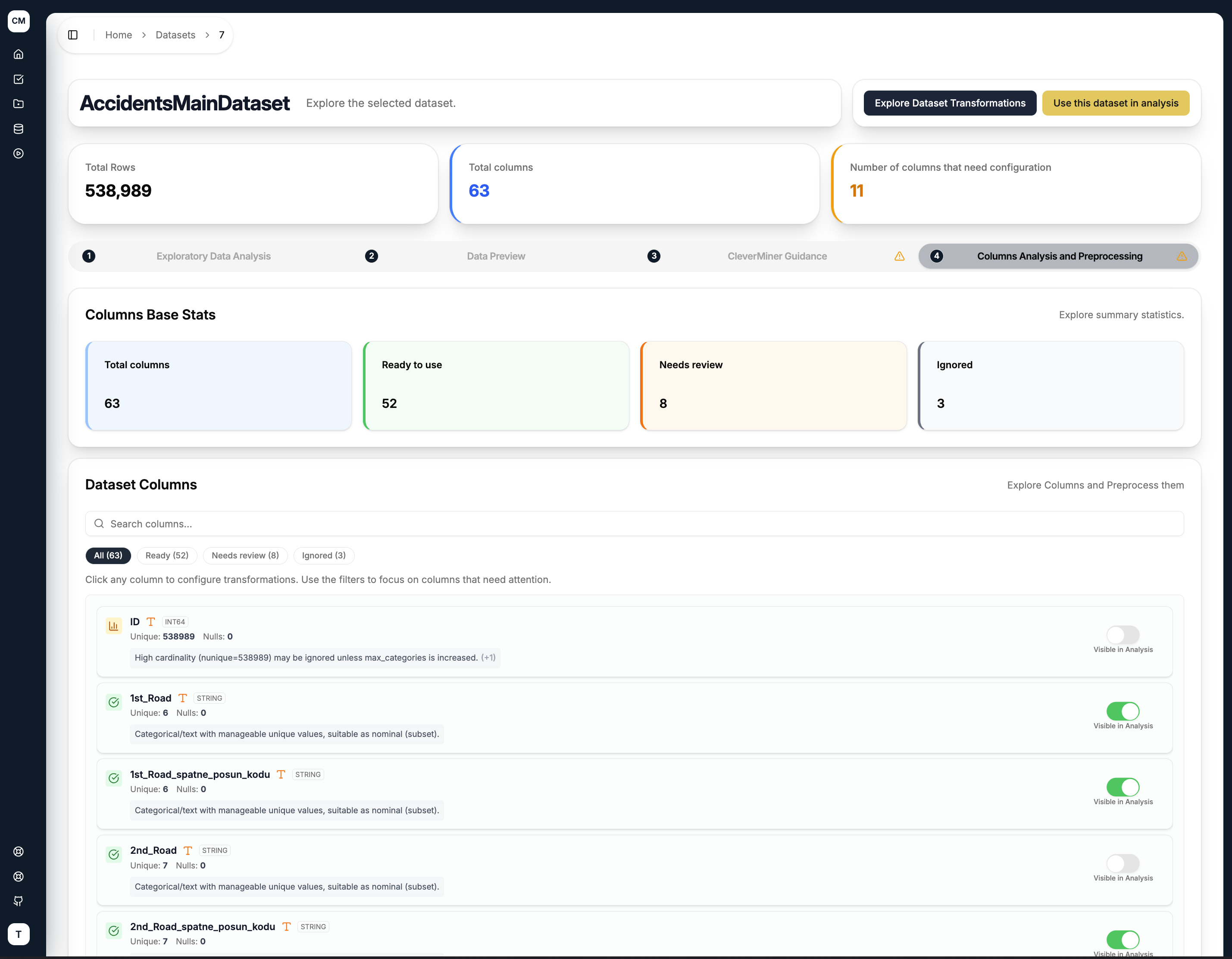
Columns Base Stats
At the top of the tab, the Columns Base Stats summary gives you an at-a-glance breakdown of your dataset's columns:
| Status | Description |
|---|---|
| Total columns | Total number of columns in the dataset |
| Ready to use | Columns that require no further preprocessing |
| Needs review | Columns that likely need discretisation or imputation before mining |
| Ignored | Columns flagged as unsuitable for mining (e.g. high cardinality) |
This applies stricter criteria than the CleverMiner Guidance tab — it evaluates all columns and flags anything that may need attention, not just columns that are immediately usable.
Dataset Columns
Below the summary, the Dataset Columns section lists every column in the dataset. Each entry shows the column name, data type, unique value count, null count, and a short insight describing its characteristics. You can search for a specific column using the search field at the top.
Clicking on any column opens a drawer panel from the right side of the page with analysis and transformation options for that column.
Preprocessing Drawer
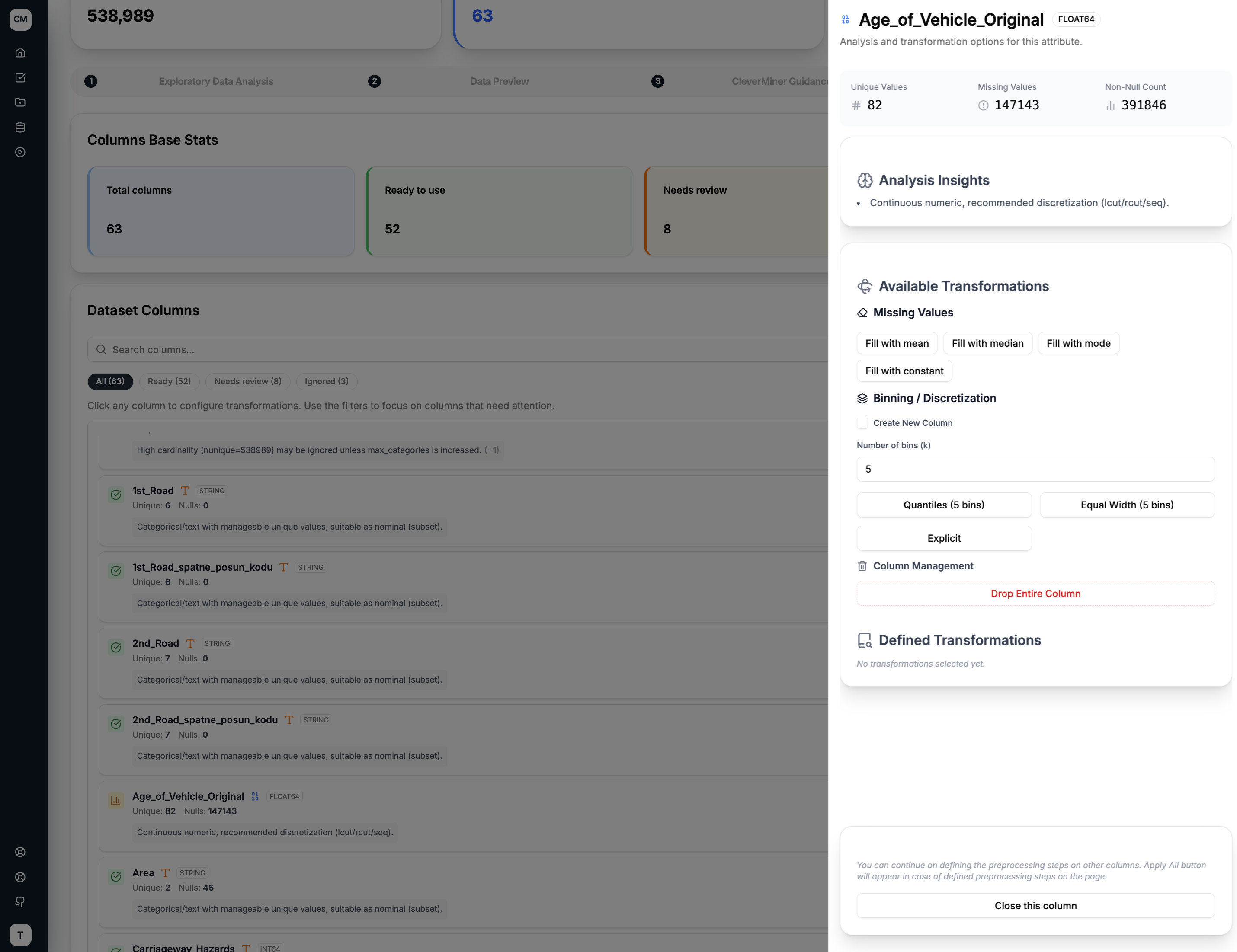
The drawer shows the selected column's key statistics — unique values, missing values, and non-null count — followed by an Analysis Insight that describes the column's nature and what preprocessing is recommended.
Available Transformations
Missing Values
Fill missing values in the column using one of four strategies:
| Strategy | Description |
|---|---|
| Fill with mean | Replaces nulls with the column's arithmetic mean |
| Fill with median | Replaces nulls with the column's median value |
| Fill with mode | Replaces nulls with the most frequently occurring value |
| Fill with constant | Replaces nulls with a user-specified value |
Binning / Discretisation
Convert a continuous numeric column into categorical bins. You can configure:
- Output column name — either overwrite the original column or save the result as a new one
- Number of bins (k) — how many bins to split the values into
- Binning strategy — choose from:
- Quantiles — bins with equal frequency (same number of rows per bin)
- Equal Width — bins with equal value range
- Explicit — manually define bin boundaries
Column Management
If a column is not needed, you can permanently drop it from the dataset using the Drop Entire Column option.
Applying Preprocessing Steps
As you configure transformations across columns, each step is accumulated in the Applied Preprocessing Steps section at the bottom of the page. From there you can review the queued operations, remove individual steps, or clear all pending steps at once.
Once you are satisfied with the selected operations, click Apply All to trigger the full preprocessing pipeline. The operations are dispatched to background workers, keeping the application responsive while the dataset is being processed. The result is saved as a new pre-processed dataset, leaving your original data unchanged.
You can iterate through columns in any order and queue up multiple transformations before applying them all at once — you do not need to apply changes one column at a time.